How to Join a Squad
A first-match route for finding an open squad, choosing a low-risk role and staying connected to the active objective.
Joining a squad is the safest first live-server action: use the current server browser, choose an open squad, communicate your first move and stay tied to the objective. Exact menu labels and voice controls remain build-sensitive.
Quick facts
- Best first role
- A non-command role you understand
- First communication
- State position, objective and intent
- Boundary
- Exact UI labels and keybinds can change by build
Do this in order
Open the server browser
Choose a live server and read its platform label before joining. Prefer a populated server where squad communication is active.
Success signal: You can see the server name, current map or mode label and its platform access before joining.
Failure check: If the server does not appear, check filters and platform access before assuming the account or connection is broken.
Choose an open squad
Select a squad with an open slot and a role you can understand. Leave Squad Leader and Commander until their specific tutorials are complete.
Success signal: Your player is attached to a squad and the squad HUD identifies a leader or active members.
Failure check: If every squad is locked or full, refresh the list or join another server rather than creating a command role by default.
Say what you are doing
Use the available squad voice channel or text channel to acknowledge the objective and state your first move.
Success signal: A squad member can tell where you are headed and why without needing a private explanation.
Failure check: If nobody hears you, open the audio and input settings; do not assume a universal push-to-talk key.
Stay with the objective
Follow the squad toward the active objective, check the tactical map when you lose the group and return to the objective when the fight shifts.
Success signal: You remain connected to the squad and can identify the active objective at the end of the first engagement.
Why squad context matters
The official launch material puts communication and the active objective at the centre of a first match. A squad gives those instructions a practical channel without requiring a new player to lead the entire team.
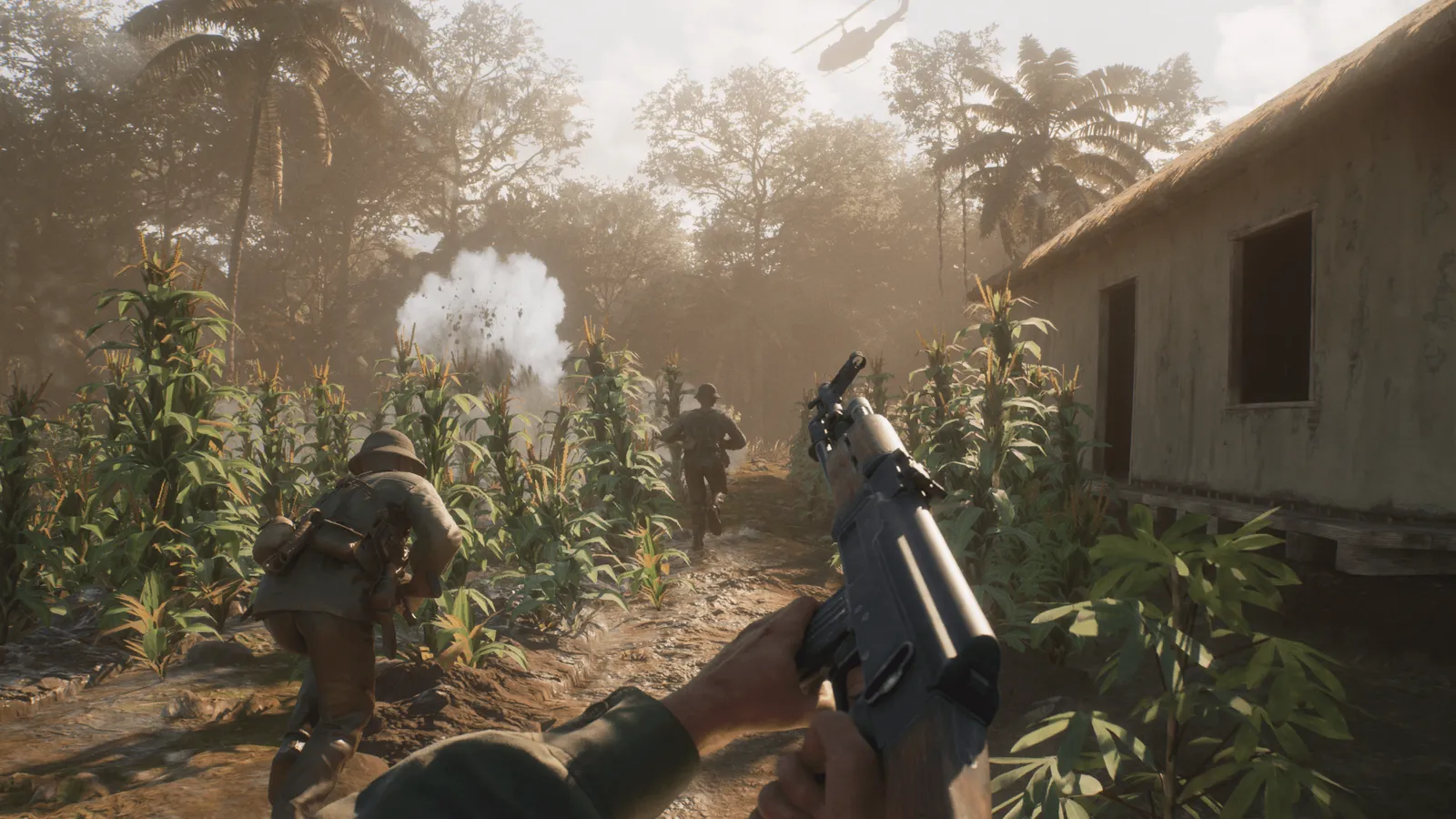
Choose a low-risk first role
Start with a role whose task you can explain in one sentence. Leave Squad Leader and Commander for after the corresponding tutorials; this page does not turn a community role recommendation into an official class ranking.
If the server list looks full
The official launch updates say the Server Browser refreshes more often, hides full servers by default and can be adjusted with filters. If a server disappears or refuses the join, try another server with visible capacity before treating it as an account or network failure.
- Check the current platform label and the available-space filter.
- Try an Official Server or another Community Server when a specific server is full or reserved.
- Record the server name, platform label and visible error if the same failure repeats.
Failure check
If the server browser, squad list or voice channel behaves differently, record the platform and build, then check the latest official notes. Do not use a screenshot from another build as a universal UI reference.